Mobile Chart Controls
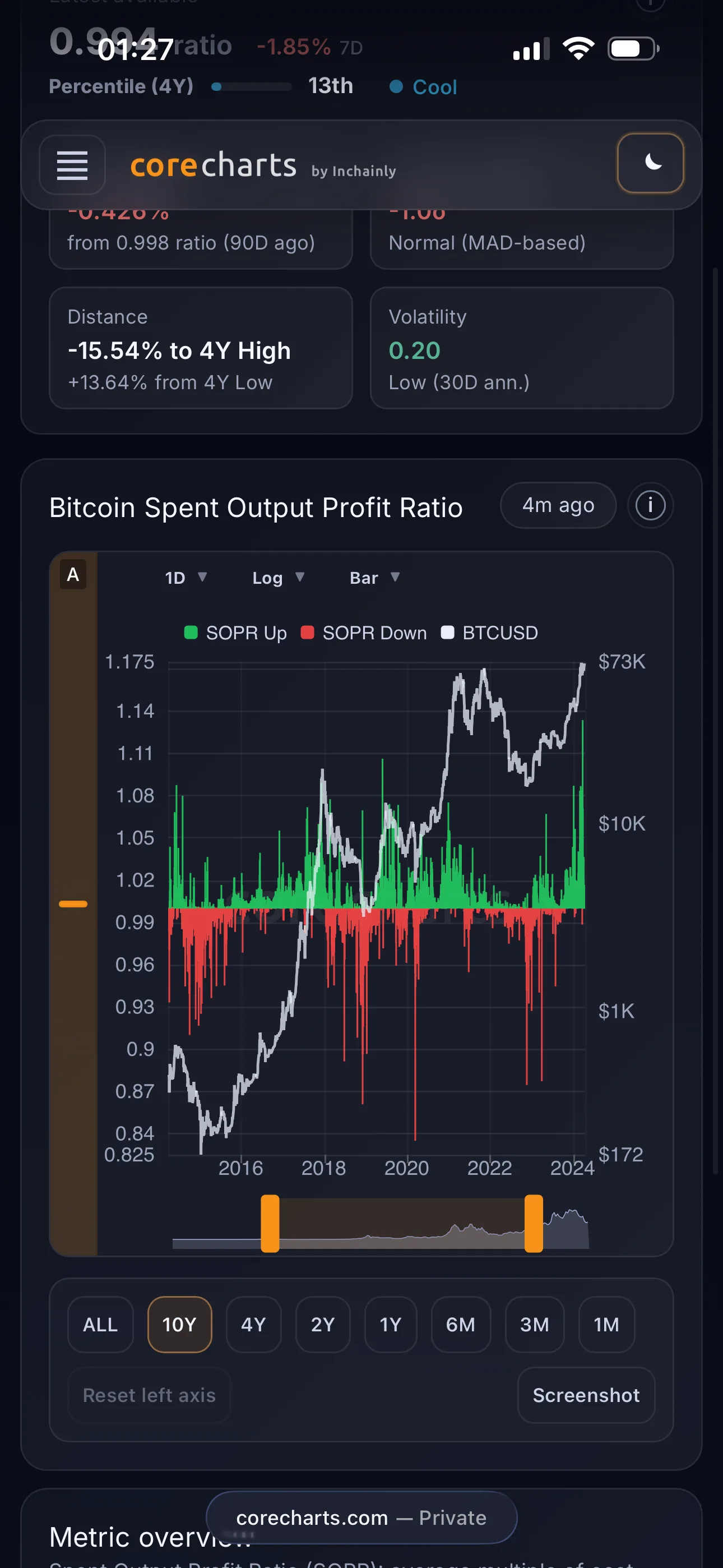
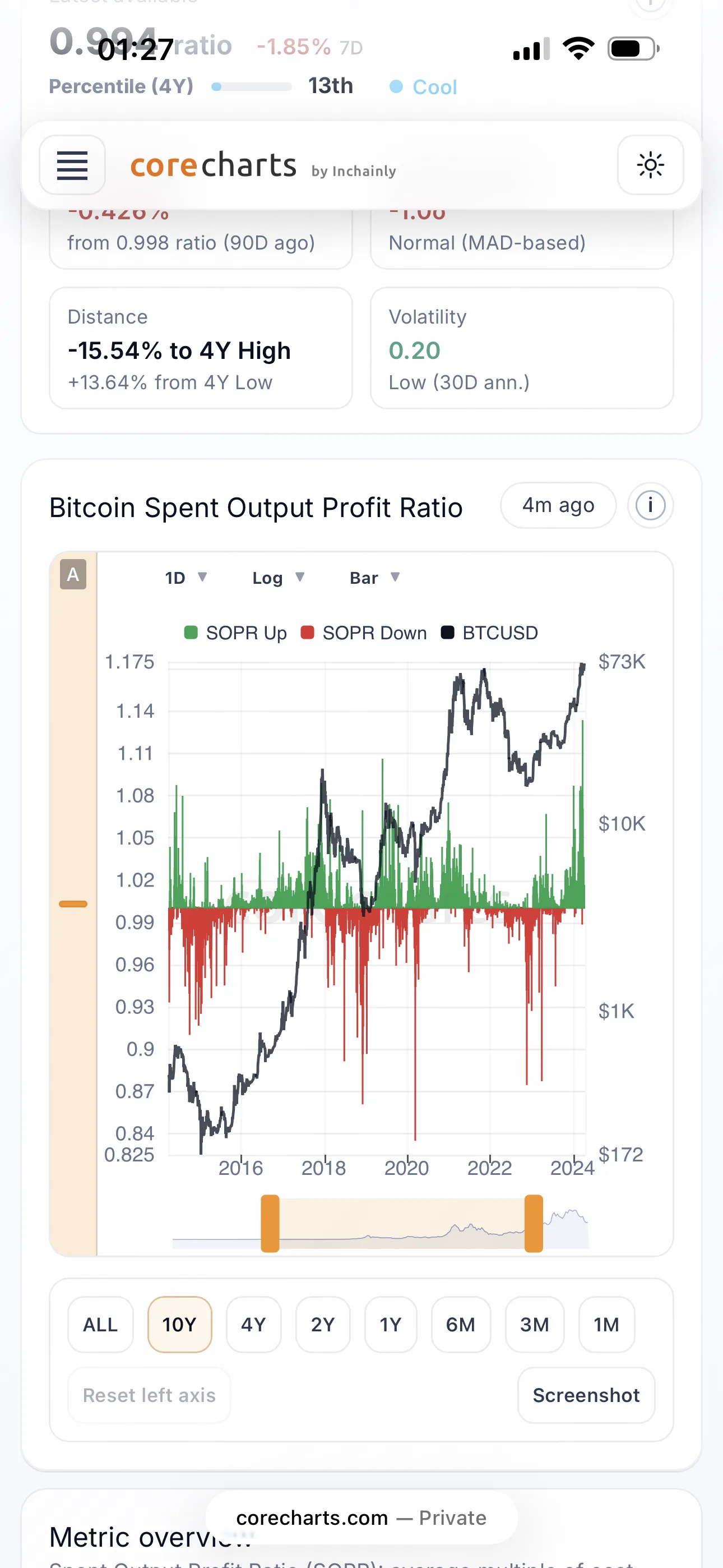
On mobile (phone / tablet)
Time navigation (X-axis)
Bottom slider
A time-range slider sits below the chart:
- drag the highlighted area to move through time;
- pinch the area to zoom in or out.
This is the main way to navigate history on mobile.
Range buttons
Use ALL, 10Y, 4Y, 2Y, 1Y, 6M, and 3M:
ALL- full history;- the others - fixed windows ending at the latest available data.
Pinch on the chart
Use two fingers directly on the chart:
- pinch in - zoom in;
- pinch out - zoom out.
This changes the horizontal time scale.
Reset time scale
Double-tap inside the chart area, but not on the left strip, to reset the time range back to ALL.
Vertical scale (left Y-axis)
A semi-transparent control strip sits along the left side of the chart.
Move the vertical range
Place one finger on the left strip and drag up or down to move the visible Y-range.
Vertical pinch-zoom
Pinch with two fingers on the left strip:
- pinch in - zoom in (more detail);
- pinch out - zoom out.
The zoom is centered around the current mid-range.
Reset vertical scale
Double-tap the left strip to return the Y-axis to auto mode and fit the data automatically.
Cursor mode and tooltips
Turn cursor mode on
Tap once inside the chart:
- a vertical line appears,
- a tooltip shows the date, metric value, and BTC price.
Move the cursor
With cursor mode on, drag your finger along the chart to move the cursor and update the tooltip.
Turn cursor mode off
Tap the chart again to hide the cursor and tooltip.
Double-tap and reset
With cursor mode off, a double-tap resets the time scale to ALL.
With cursor mode on, a double-tap resets the time scale and also turns cursor mode off.
BTC price: log / linear
The Log price / Linear price button below the chart toggles the right axis, which shows BTC price, between log and linear scale.
The metric on the left axis does not change.
Screenshot (if available)
Screenshot creates a PNG of the current chart view for saving or sharing through your device's system dialog.