Desktop Chart Controls
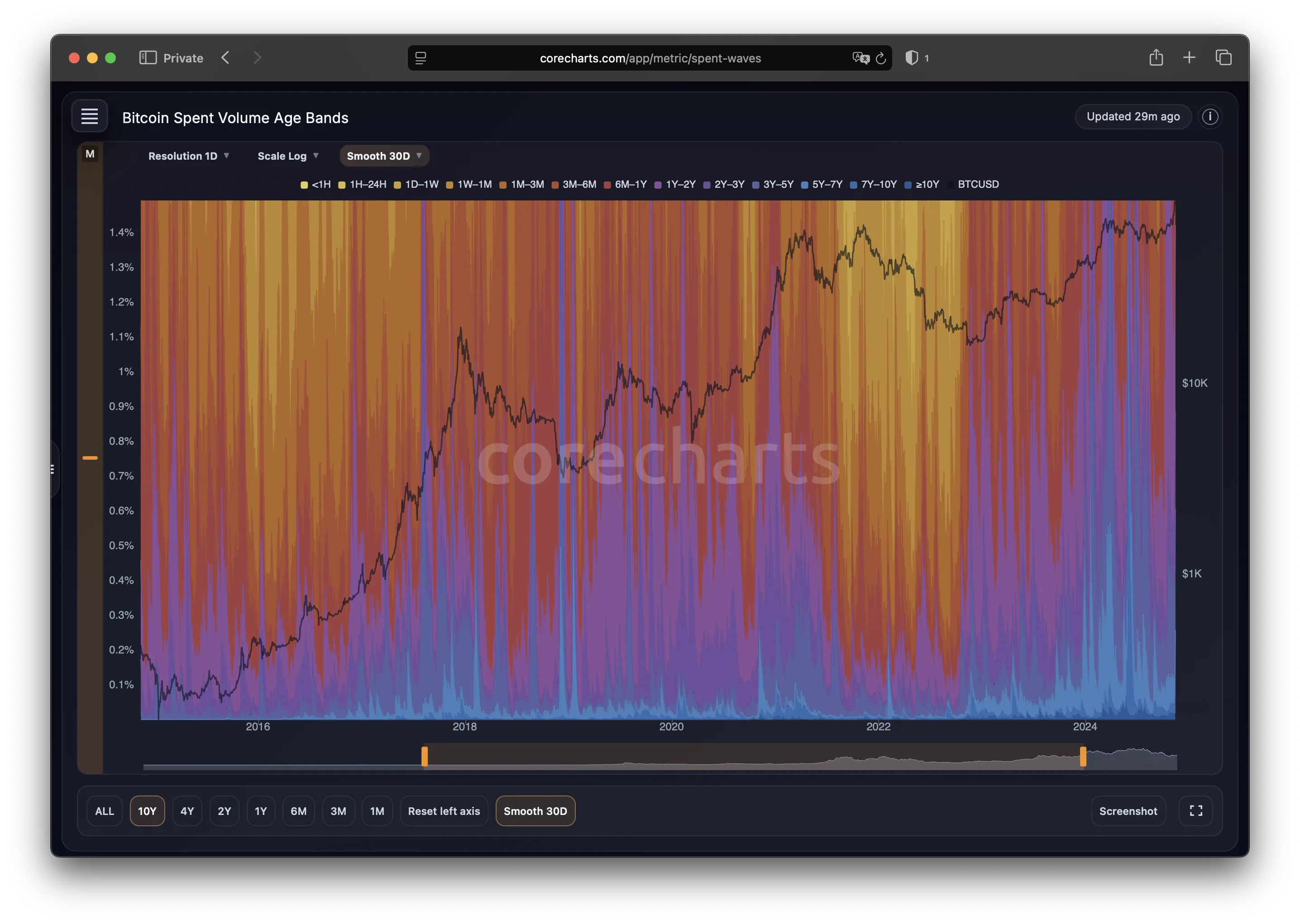
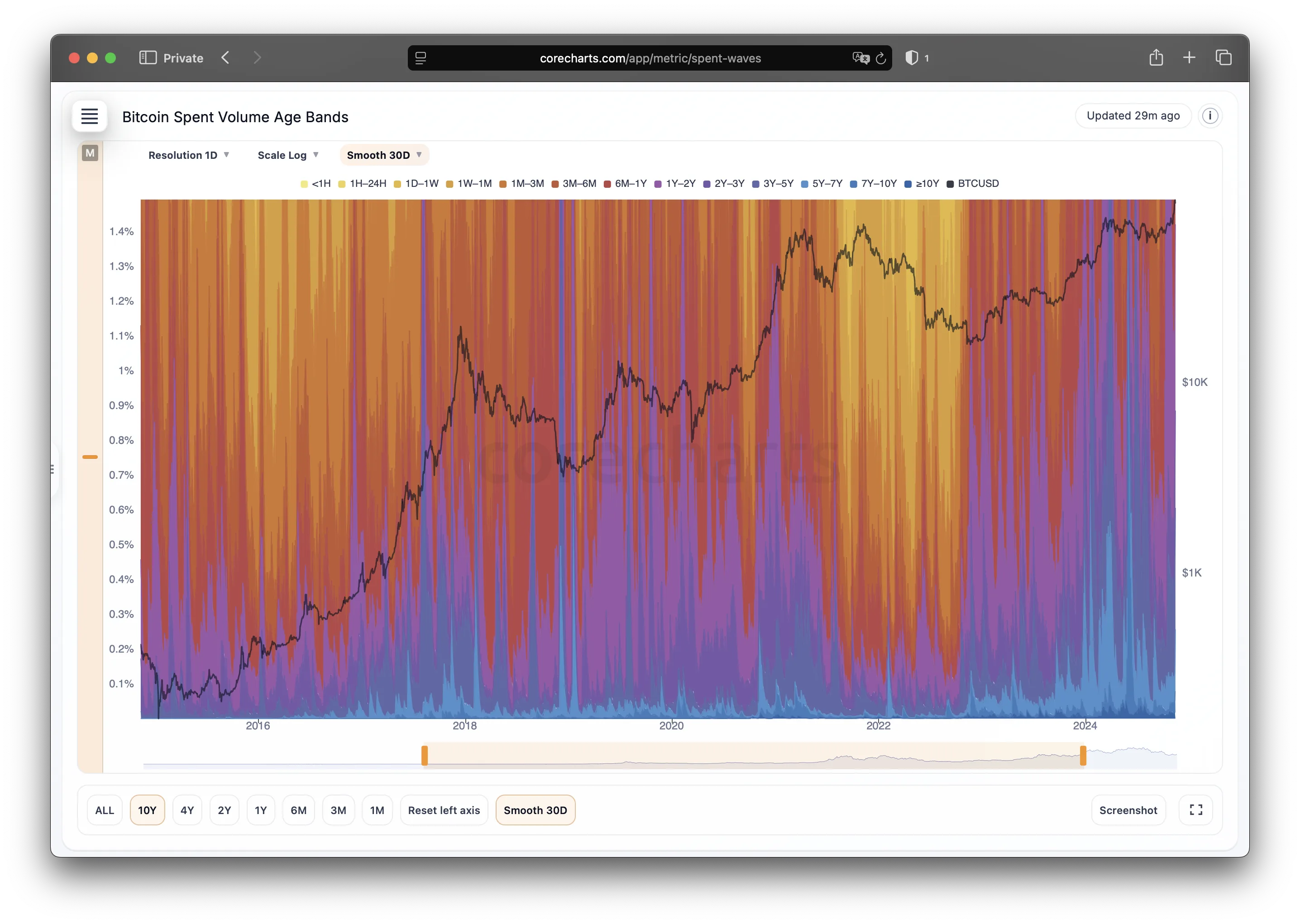
On desktop
Time navigation (X-axis)
Range buttons (ALL / 10Y / 4Y / 2Y / 1Y / 6M / 3M / 1M)
Use the buttons below the chart:
ALL- full history.10Y/4Y/2Y/1Y/6M/3M/1M- fixed windows ending at the latest available data.
The active range is highlighted.
Drag to zoom
Left-click inside the chart and drag horizontally to draw a selection box, then release to zoom into that time window.
Ctrl + mouse wheel (time zoom)
Move the cursor over the main plot area, hold Ctrl, and scroll the wheel to zoom in or out along the time axis.
Shift + mouse wheel (time pan)
Move the cursor over the main plot area, hold Shift, and scroll the wheel to move the visible time window left or right without changing the zoom level.
Reset time scale
Double-click inside the chart area, but not on the left strip, to reset the time range back to ALL.
Vertical scale (left Y-axis)
A semi-transparent control strip sits along the left side of the chart.
Move the vertical range
Hover over the left strip, hold the left mouse button, and drag up or down to move the visible Y-range.
Shift + wheel (vertical zoom)
Move the cursor over the left strip or the left side of the chart, hold Shift, and scroll:
- scroll up - zoom in (narrower range);
- scroll down - zoom out (wider range).
The zoom is centered around the value under the cursor.
Reset vertical scale
Click Reset left axis below the chart, or double-click the left strip, to return the Y-axis to auto mode and fit the data in the current time window.
Tooltip and cursor
Moving the mouse over the chart shows a vertical cursor and a tooltip with:
- date,
- the selected metric value,
- BTC price.
To hide the tooltip, move the cursor off the chart or change the zoom.
BTC price: log / linear
The Log price / Linear price button only affects the right axis, which shows BTC price:
- when the button says
Log price, the chart is currently in log scale - click to switch to linear; - when it says
Linear price, the chart is currently in linear scale - click to switch back to log.
The metric on the left axis does not change.
Screenshot
Screenshot creates a PNG of the current chart view, including the current zoom level and selected threshold, and starts the download automatically.
Fullscreen (desktop only)
Click Full screen to expand the chart to full screen.
Click it again or press Esc to exit. The layout adjusts automatically in fullscreen mode.